




.svg)


.png)
Pipelines start simple: a handful of nodes, clear dependencies, and straightforward execution. At enterprise scale, that changes. Pipelines grow to thousands of nodes, span multiple systems, and feed dozens of downstream consumers. What was once a clean DAG becomes a dense, interconnected graph that is hard to navigate and harder to reason about.
When something fails in that environment, the questions are always the same: Where did this start? What changed? What else is affected? Traditional observability answers the first part. It surfaces alerts, run statuses, and basic lineage. But it stops short of explaining why something failed, and rarely points toward what to do next.
Acceldata 26.4.0 addressed this gap directly with two capabilities: a redesigned Pipeline Detail View built for large-scale navigation, and Copilot support that brings together execution data, lineage, and anomalies to accelerate root cause analysis.
Releases 26.9.0 and 26.10.0 extend that foundation with one goal: shorter time to resolution when failures cross system boundaries. Engineers now trace an issue from orchestration to storage in one view, see child task failures on the parent run before an SLA breaks, and open the exact downstream run a dataset triggered instead of searching for it.
The Problem: Observability Without Understanding
At 2,000–3,000 nodes, standard DAG visualization breaks down. Zoom and scroll are not enough. Locating a specific asset, tracing an execution path, or identifying where a failure originated requires manually navigating a graph that was never designed to be navigated at that scale.
The challenge compounds when pipelines cross system boundaries. A failure in one pipeline may propagate into dependent pipelines. Without visibility into those cross-pipeline relationships, teams are left reconstructing the blast radius manually — correlating logs, lineage records, and execution metadata spread across separate views and tools.
The core issue: Traditional observability tells teams what happened. At enterprise scale, that is necessary but not sufficient. Teams need to know why it happened, and what it affects.
A Redesigned Pipeline Detail View
The enhanced Pipeline Detail View is built around the practical needs of teams operating large, interconnected pipelines. Rather than requiring users to navigate a monolithic graph, it surfaces the right information in context.
Search and Node Location
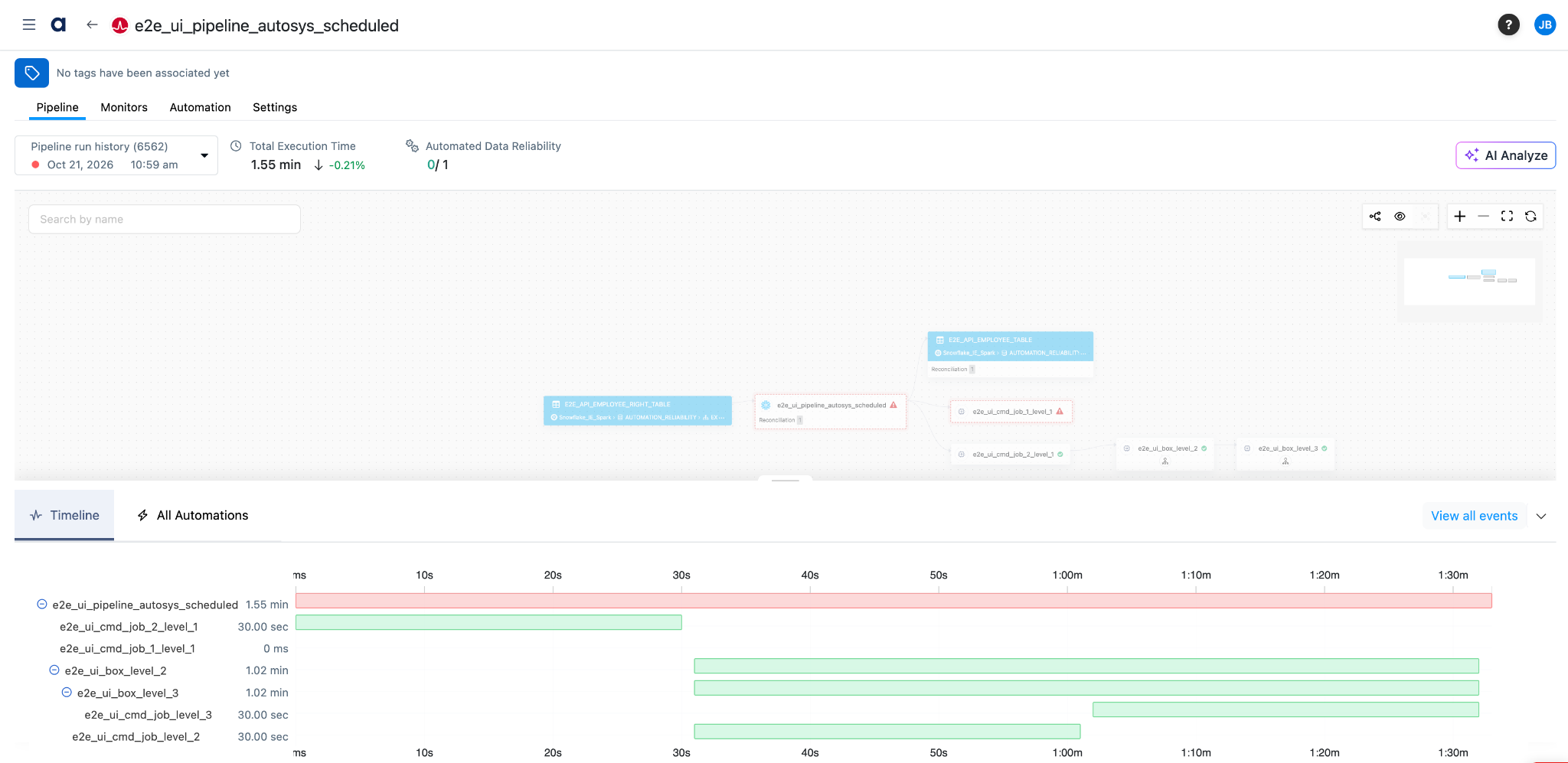
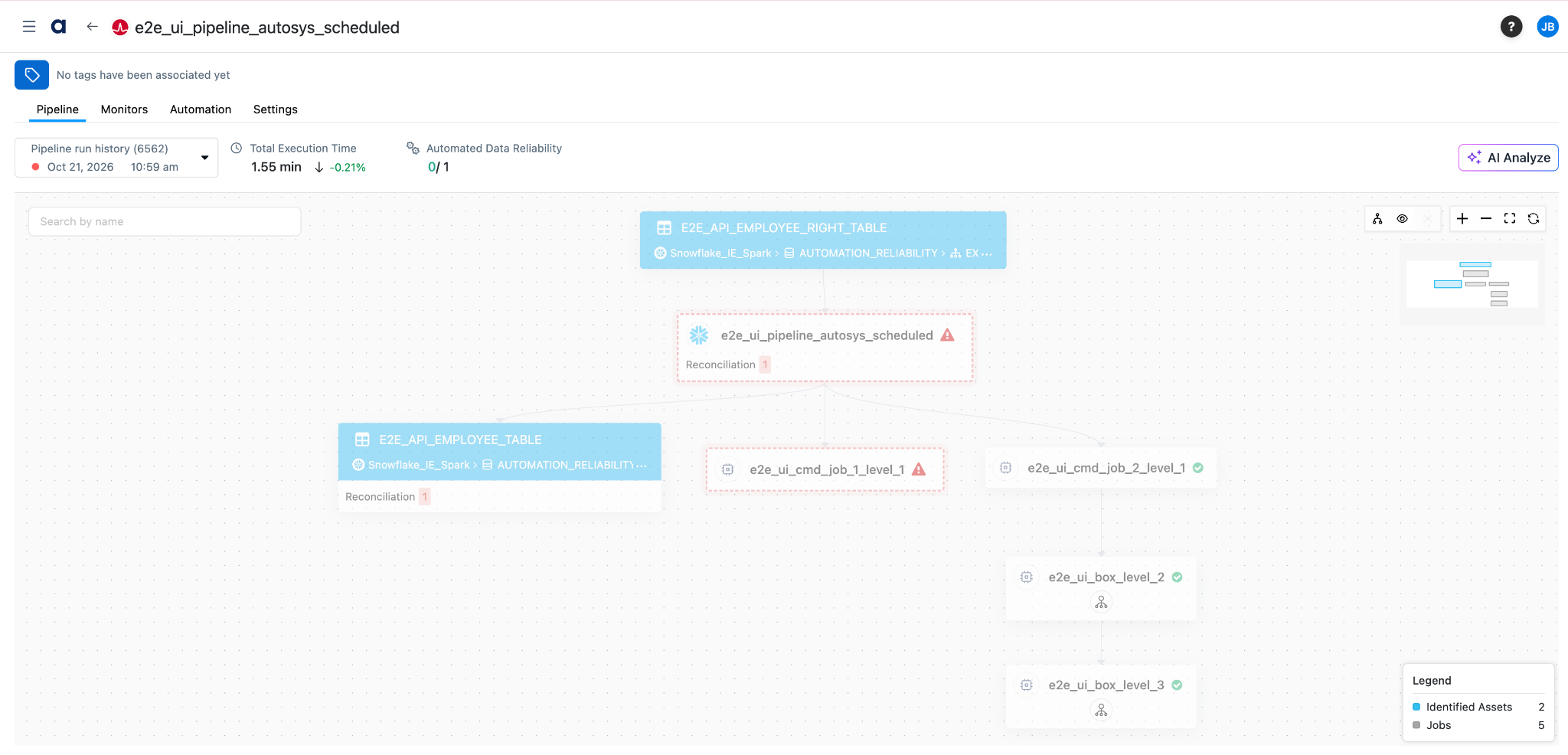
Tasks, datasets, and transformations are findable by name. Users can jump directly to a specific node without manually scanning a graph of thousands of elements. . The graph also switches between vertical and horizontal layouts. Horizontal fits more nodes on a wide screen and cuts scrolling in large pipelines, and your choice carries over to every pipeline you open. The details panel below the graph resizes or collapses, so the “Timeline” gets room to show task durations and parallel execution when you need it.This alone eliminates a significant source of friction in incident investigation.
Failure Highlighting in Context
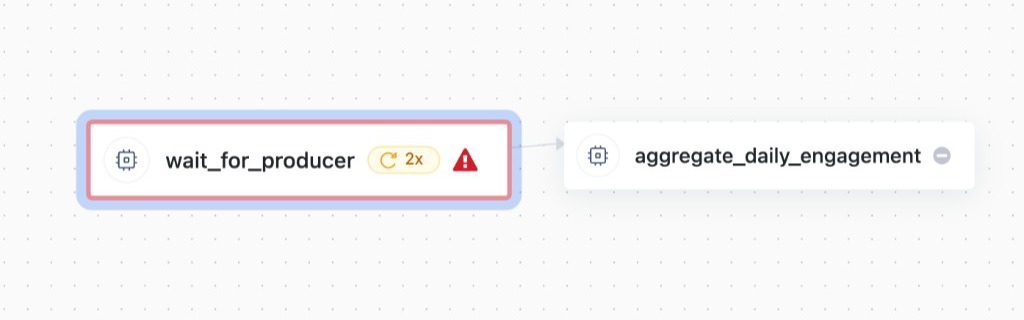
Alerts and failures are surfaced directly within the DAG view. Problem areas are immediately visible without switching to a separate alert view, keeping the investigation anchored to the pipeline structure where the failure occurred. For example, the task nodes in Airflow and AWS Step Functions pipelines also show how many times a task was retried before it succeeded, so a run that passed on its third attempt no longer looks the same as a clean one.
Execution Path Traversal
Upstream and downstream paths are traversable from any node. Teams can follow dependencies in either direction to trace where an issue originated or assess which downstream assets are affected, — without switching tools or context. The path stays highlighted while the work is happening, instead of clearing the moment the cursor moves.
Cross-Pipeline Visibility
Related pipelines are displayed alongside the current DAG. Triggered pipelines appear as expandable nodes, so teams drill through cross-pipeline relationships at multiple levels without leaving the top-level view. Airflow DAGs triggered by dataset schedules now link to the upstream datasets that triggered them, so the trace holds where one pipeline hands off to another. Lineage also stitches across orchestration, processing, catalog, and storage layers in one graph. Read more ->
dbt Cloud Integration
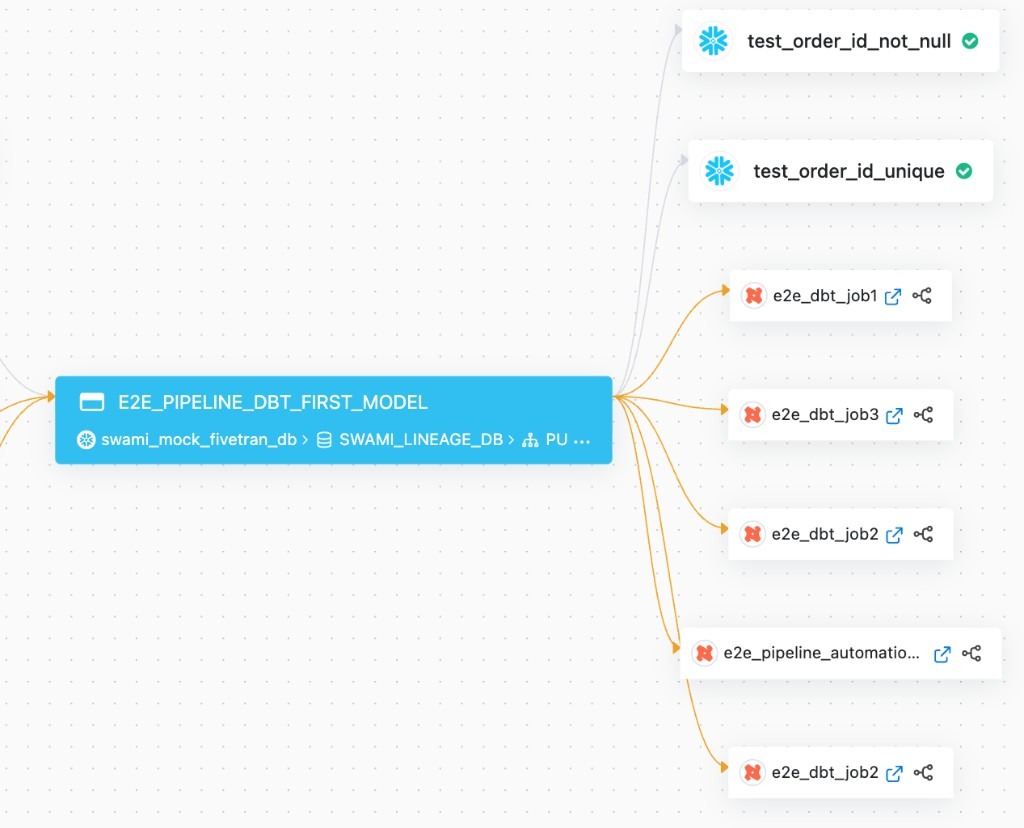
Pipelines increasingly span transformation layers, and dbt Cloud is now integrated directly into the pipeline view. dbt jobs, models, and their dependencies are automatically discovered and synchronized; including run history, execution metadata, and lineage. Asset associations, alerts, and policy execution from dbt Cloud are visible within the same pipeline view, giving teams a unified picture of activity across orchestration and transformation layers without manual stitching.
Teams that trigger dbt Cloud jobs from Airflow can also avoid duplicate lineage. When the ADOC dbt Cloud connector already collects model, test, and dataset lineage, a setting in acceldata-openlineage v1.1.0 turns off Airflow’s built-in dbt Cloud extraction.
Net result: Less time locating issues. Faster understanding of dependencies. Fewer context switches during incident resolution.
Access to In-context Pipeline Analysis
Better navigation reduces the time to find an issue.With ADM AI Assistant, it reduces the time to understand it.
Even with improved visibility, debugging large pipelines remains a manual process: correlating execution logs, tracing lineage, identifying anomalies, and assembling a coherent picture of what happened. Copilot automates that correlation.
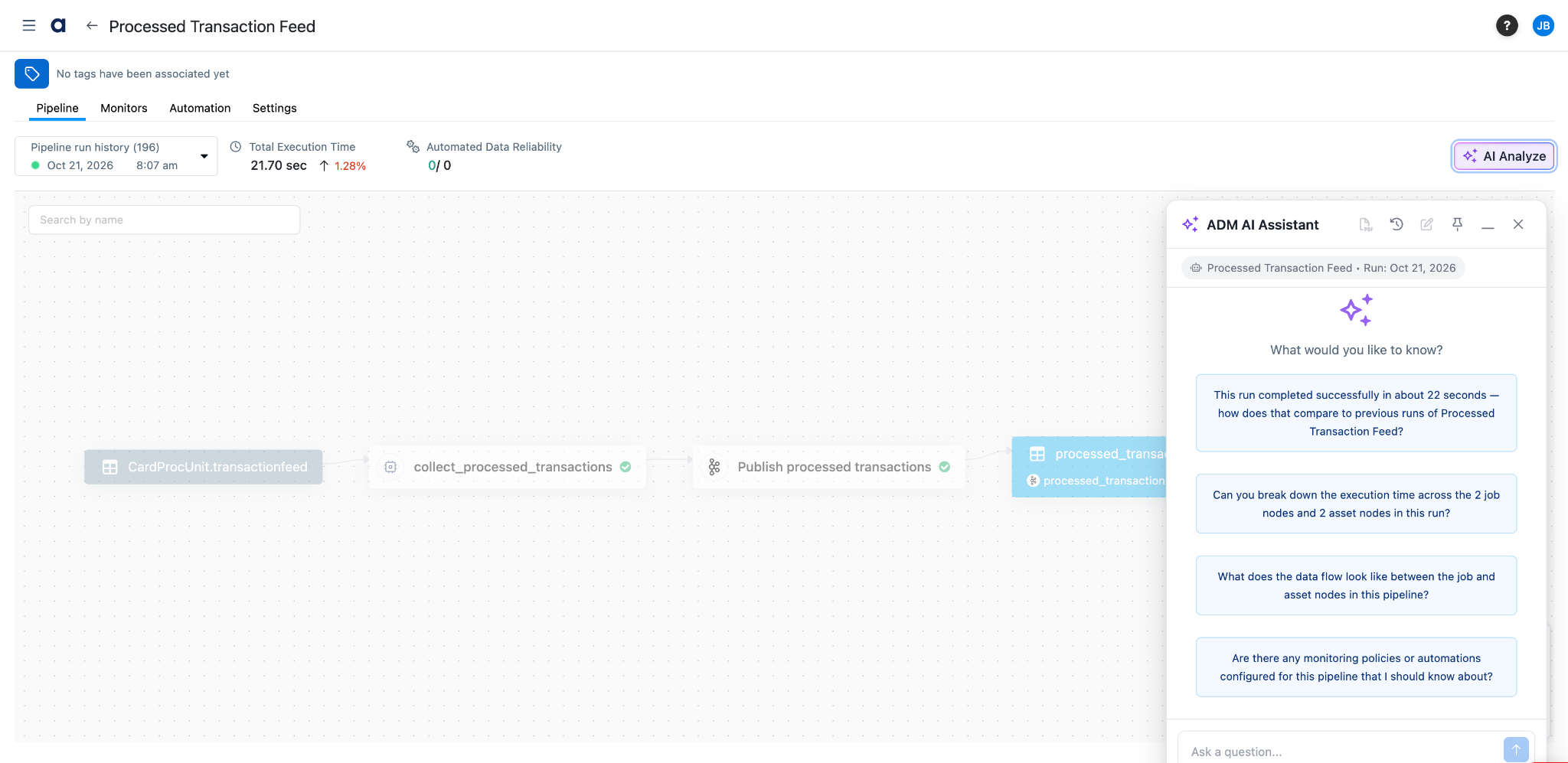
Teams can ask direct questions and get contextual answers grounded in the actual pipeline data:
- Why did this pipeline fail?
- What changed between this run and the previous one?
- Which upstream task caused this issue?
- What downstream systems are affected?
To answer these questions, Copilot correlates across four signal types that are typically examined in isolation:
- Pipeline structure — tasks, stages, and dependencies
- Execution metadata — run timing, failures, and task-level metrics
- Lineage relationships — upstream and downstream datasets, cross-pipeline links
- Anomalies and data changes — spikes, drops, missing outputs, and delayed arrivals
Rather than presenting these signals separately, Copilot synthesizes them into a single, unified explanation of what happened — including root cause identification, downstream impact assessment, and column-level lineage tracing for precise debugging.
Root Cause Identification
ADM AI Assistant correlates execution behavior, transformation logic, and lineage to surface the most likely cause of a failure, not just its symptoms. Complex pipelines are broken into logical stages so the analysis stays focused on the relevant section. It can also compare two runs down to code-level differences, and it redraws the pipeline graph to match the context of each question.
Downstream Impact Assessment
When a failure occurs, the AI assistant traces affected datasets, pipelines, and reports to quickly establish the blast radius. Teams can prioritize response based on actual downstream impact rather than working it out manually.
Column-Level Lineage Tracing
For investigations that require precision, It can follow lineage to specific columns and transformations, identifying exactly where a data issue entered the pipeline and how it propagated.
Key distinction: ADM AI Assistant does not just surface anomalies or alert on failures. It provides end-to-end explanation: how an issue originated, how it propagated, and what it affects downstream.
Available Now
The redesigned Pipeline Detail View and ADM AI Copilot pipeline support shipped in Acceldata 26.4.0, and 26.9.0 and 26.10.0 extend them.
Existing customers can refer to Pipeline Run Details documentation for setup.
Book a demo for experiencing Acceldata’s comprehensive pipeline observability.